


FRITZ! Lab for FRITZ!Smart Gateway
In the FRITZ! Lab for the FRITZ!Smart Gateway you can try out new functions and improvements fresh from development.
FRITZ! Lab for FRITZ!Smart Gateway at a glance
- NEW: Data read by the FRITZ!Smart Energy 250 from the export meter is shown under ‘Smart Home > Devices and Groups’
- NEW With FRITZ!Smart Control 440, the following functions can now be controlled: the boost and frost protection functions for radiator controls, colour and colour temperature for lamps, activation and deactivation of routines, and the display of the QR code for Wi-Fi
- NEW Routines can also be triggered by a phone call, by reaching a target temperature, or by activating boost or antifreeze functions, as well as by important events on the FRITZ!Box
- NEW Templates and routines can be triggered with delay
- Improved The schedule for a radiator control can be disabled without discarding the configured schedule
- Improved Temperature and humidity data from Zigbee devices are displayed in the home network and can be used for automation
- Improved Roller shutters can now be combined into groups
- Improved: Colour and brightness transitions have been improved in the controls for Zigbee lights
- Fixed: After a restart of the FRITZ!Smart Gateway, the FRITZ!Smart Energy 200 and FRITZ!Smart Energy 210 sockets were no longer visible on the user interface of a Matter controller.
Installation on the FRITZ!Smart Gateway
You're not using the current FRITZ!OS in your FRITZ!Smart Gateway yet? Then first update FRITZ!OS to the latest release version.Here we tell you how this works.
If your FRITZ!Smart Gateway has the latest FRITZ!OS installed you can start installation of the lab version.
- Read and confirm the information displayed.
- Click on ‘Download’ and save the file on your computer.
- Unpack the lab file (*.zip)
- Select the ‘Backup’ tab in the ‘System / Backup’ menu of the FRITZ!Smart Gateway user interface. Back up the settings of your FRITZ!Smart Gateway.
- Select the ‘FRITZ!OS File’ tab in the ‘System / Update’ menu of the FRITZ!Smart Gateway user interface. Perform the update.
- Select the lab version that matches your FRITZ!Smart Gateway model (e.g. C:\Documents and Settings\Username\Desktop\FRITZ.Smart_Gateway-xx.xx-xxxxxx-Lab.image).
- Click on ‘Start Update’.
- Follow the instructions displayed on the screen.
During the update, the bottom, non-labelled ‘Connect’ LED on your FRITZ!Smart Gateway flashes fast. The LED goes out once the update is complete. Please be patient, as this process may take several minutes. As soon as the update has been completed, the FRITZ!Smart Gateway restarts and is then ready for operation.
Important
This FRITZ! Lab version is a beta. Please note the terms of use and the data protection statement for our products.
You can switch back to the official FRITZ!OS at any time under ‘System > Update > FRITZ!OS Version’.
Please also note the information about the use of lab versions in the infolab.txt. It is contained in the lab file (*.zip).
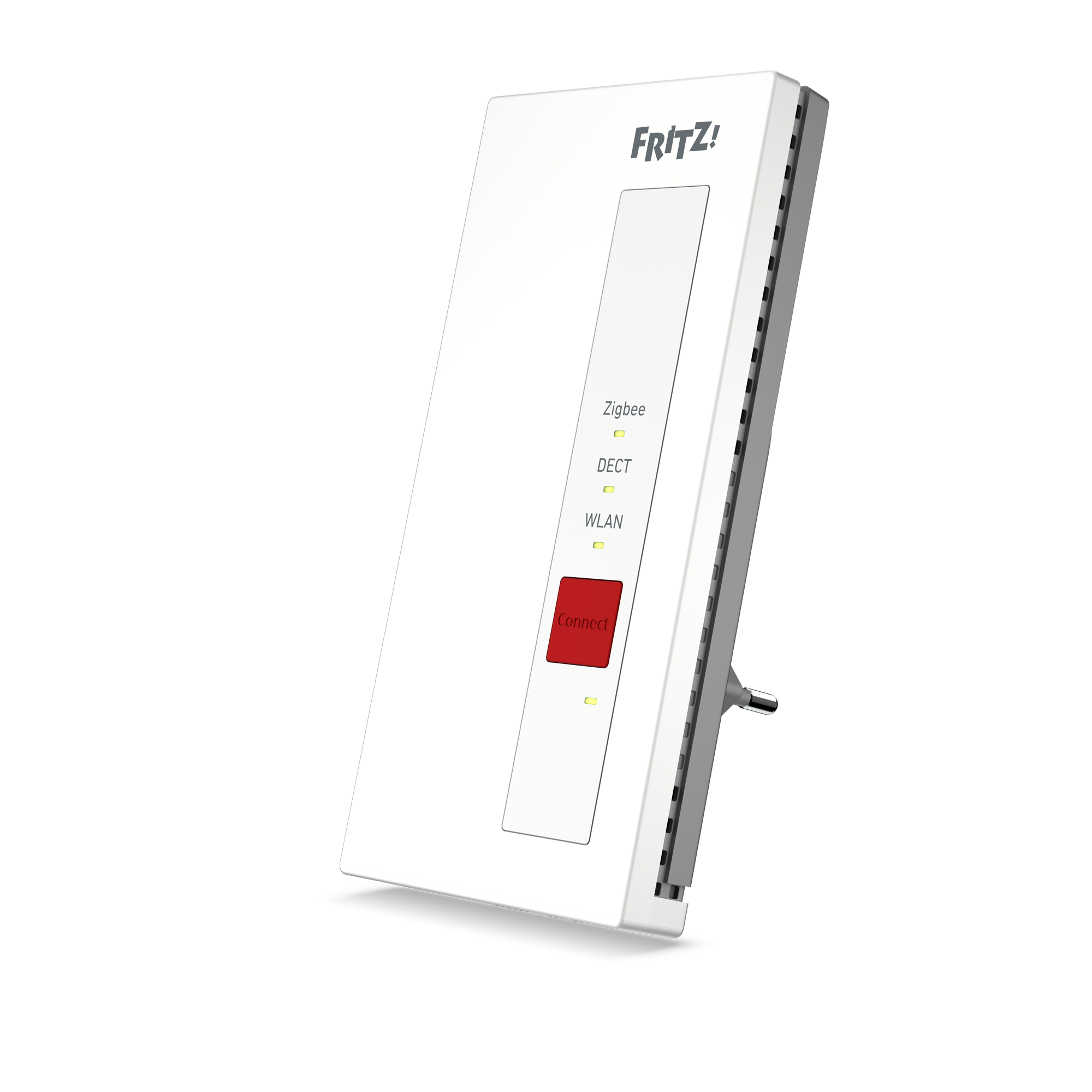
FRITZ!Smart Gateway
Download information:
Version: 8.40-134668
Date: 21/07/2026
With the download and use of the FRITZ! Lab you consent to the Terms of Use for the FRITZ! Lab.
Information: Here is the Data Protection Statement for FRITZ! Products and the use of the FRITZ! Lab.

